TaskEngine / See the gap, take the next step
Control Tower
See each task's schedule, documents, quote activity and conversations together. Open the record, do the work and return to the same chart.
TaskEngine is the software; WCTK is the customer shown in these demo captures. Dates, counts and examples are historical, not live project results. This guide documents the October 2026 Control Tower build.
Project workspace
Start beside Project Plan
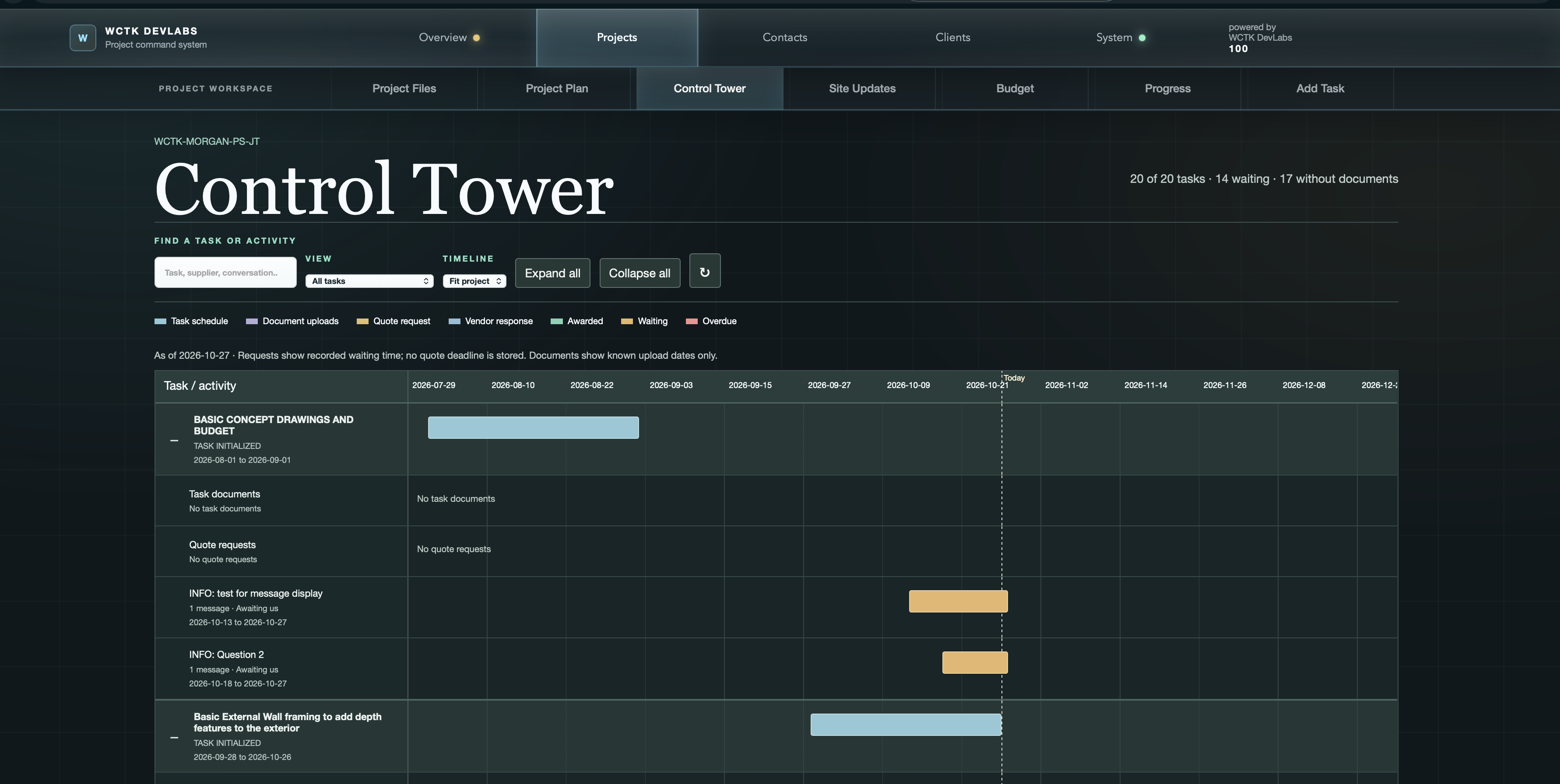
Open your project, then select Control Tower immediately beside Project Plan. Tasks are listed by name. Expand a task to see its activity rows underneath.
Project Plan
When is the work scheduled? Read the planned sequence and task timing.
Control Tower
What needs attention to move the work forward? Look for missing documents, unanswered requests and conversations.
The summary counts tasks: a task with several waiting items counts once as waiting. Waiting and without-documents counts cover the whole project's active tasks, even when the visible list is filtered.
Task / Activity
Read what is present, missing or waiting
- Task schedule
- The main task bar shows its schedule. The status label, such as Contract Awarded, is a commercial status; it does not mean the work is complete.
- Task documents
- The row shows the active document count. Its bar spans the first to most recent known upload. No task documents is clickable and opens the document workspace. Documents being present does not certify a complete package.
- Quote request
- Each request has its own row, with vendor responses directly below it. The bar runs from recorded creation to the first dated response, or to today while waiting. No quote requests opens the new-request form.
- Vendor response
- A pending response runs from receipt to today. An awarded response is green; read the label to distinguish the current award from a previous award. Select the response to open its existing quote screen.
- Conversations
- Each linked conversation shows its message count. A waiting bar runs from its latest recorded message to today. Awaiting us identifies an incoming message; Awaiting recipient identifies an outgoing one. Internal records may say Review conversation.
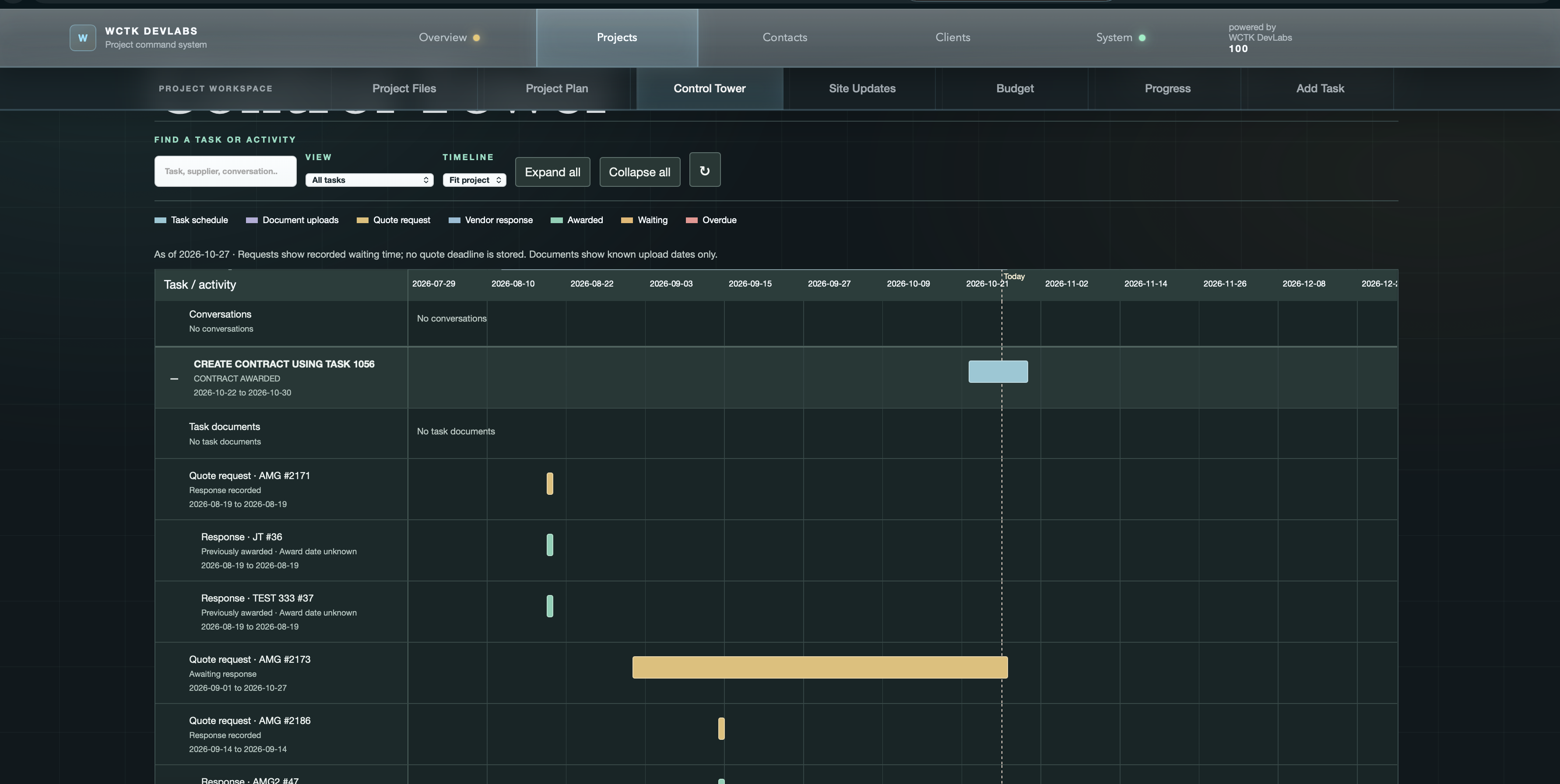
Read timing honestly. Requests currently have no separate response deadline, so a long request bar means elapsed waiting time, not automatically overdue. Historical awards have no reliable award timestamp: their short green bars sit at response receipt and say Award date unknown. Unknown upload dates still count toward documents but cannot establish the bar's dates.
Keep the chart as your starting point
Open the record, complete the next step
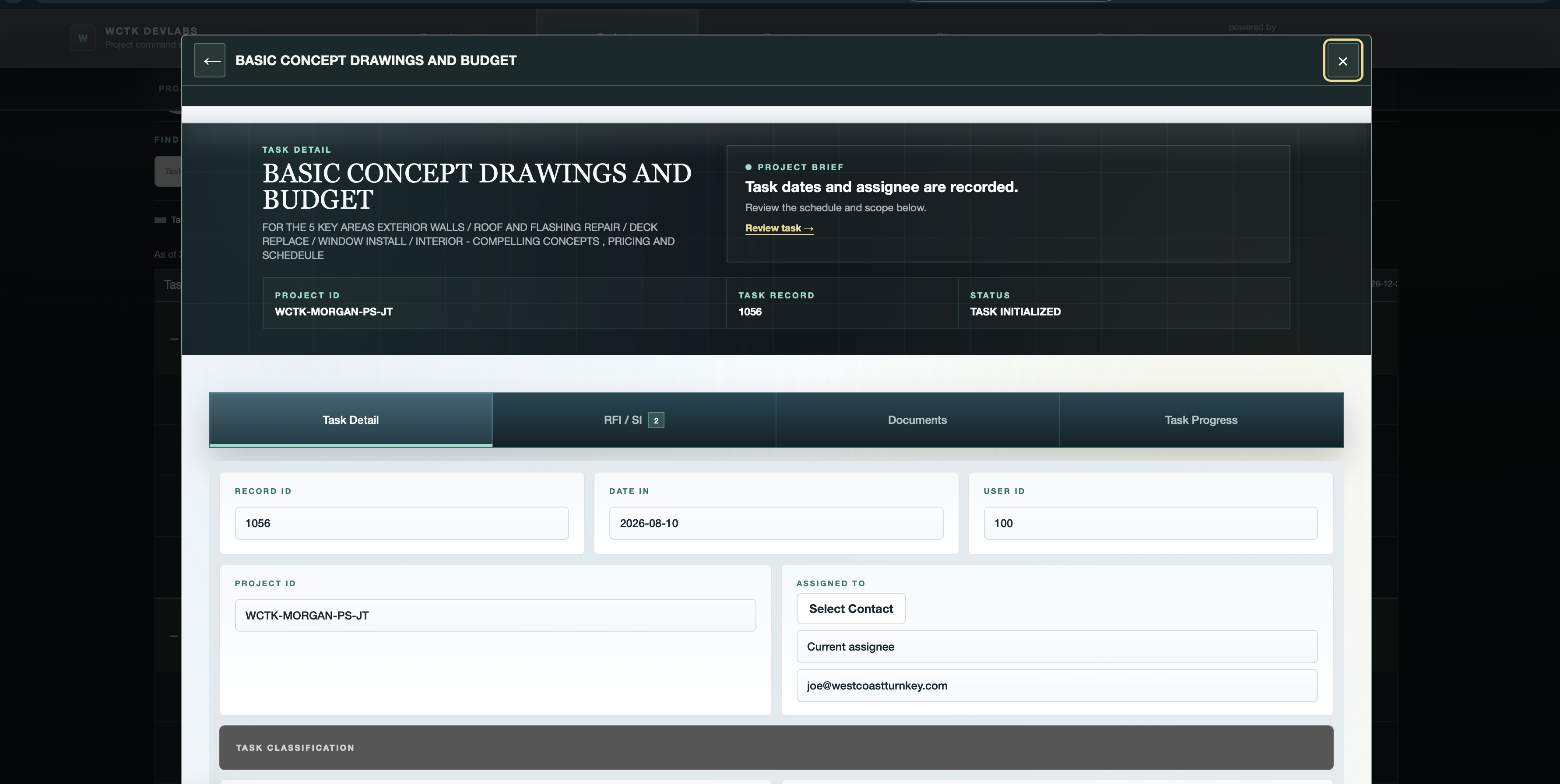
- Select a row or barOpen the task, documents, request, response or conversation in a modal over the chart. Empty activity rows provide a route to the missing step.
- Review and actConfirm the task and project. Use the existing screen to edit, upload, request a quote or reply. Check its visible save or submission result.
- Close and returnClose the modal to return to the chart. Records refresh while your filters, expanded tasks and chart position are retained.
Back and Close
The modal's Back arrow reloads the originally selected record. Close returns to the chart. If warned about edited fields, verify the save result before discarding or closing.
One task context
A project or task change in another browser tab can block a save. Reopen the intended project and record before trying again; first check whether the earlier action succeeded.
These are real application forms, not tutorial exercises. Quote requests and some messages can send email; awarding a response creates a contract. Do not re-award an existing contract just to test the chart. Saving an Overview conversation reply records it without sending an email notification.
A short daily review
Start with the items that need you
- Narrow the viewSearch by task, supplier or conversation. Choose Waiting on a reply or quote, No task documents, or Needs review.
- Investigate the sourceExpand the relevant task. Read its labels and dates, then open the record before deciding what action is needed.
- Check the resultAfter acting, return and review the updated row. Use Refresh if needed. A failed refresh leaves the last successful snapshot visible with a warning.
Needs review includes more than overdue work: missing documents, invalid task dates, pending quotes and unresolved conversations can all qualify. Fit project shows the overall range; Weeks and Days spread out the timeline for closer inspection. Use Expand all, Collapse all, or each task's plus/minus control to manage detail.
Keep the signals distinct
Quick reference
- No task documents
- No supported active files were found in that task's library. Shared project documents may still exist.
- Waiting
- A quote or conversation has a pending recorded step. It is not an unread-message indicator or proof of delivery.
- Overdue conversation
- A waiting message has a recorded Required By date earlier than today.
- Short bar
- Activity may have occurred on one day. Awarded historical responses are positioned at receipt when the actual award date is unknown.
- Dates not recorded / invalid
- The system cannot place a reliable interval. Open the record and check the source dates.
- Refresh warning
- The visible chart may be an older snapshot. Resolve the loading issue before treating it as current.
Try a read-only walkthrough
Open project 1118, expand a task, identify its document status and one waiting item, then open and close the record without changing it. Confirm you return to the same place in the chart.
Back to the beginning ↑